SAP GRDC – Leverage GRDC to derive Partner Units and Segment through Data Mappings
By Trijotech Team/ October 2023Introduction
Leveraging GRDC to derive “Partner unit and Segment” information is a valuable tool for businesses that want to improve their partner relationships and drive growth. By using data mappings to create a unified view of partner data, businesses can gain valuable insights that can be used to inform their marketing, sales, and collaboration strategies.
Benefits of Leveraging GRDC
There are many benefits to leveraging GRDC to derive partner unit and segment information. These benefits include:
• Improved partner insights: Businesses can gain a deeper understanding of their partner ecosystem, including partner unit performance, segment trends, and opportunities for growth.
• Enhanced segmentation: Businesses can create more accurate and effective partner segments, which can lead to improved targeting and ROI for marketing and sales campaigns.
• Increased collaboration: Businesses can identify and foster stronger relationships with high-value partners, which can lead to increased revenue and market share.
Data Mappings
Data mappings are the foundation of GRDC. They are used to link data from different sources, such as point-of-sale systems, customer relationship management (CRM) systems, and loyalty programs. By creating a unified view of partner data, businesses can better understand their partner relationships and identify opportunities for segmentation.
Define Data Mapping
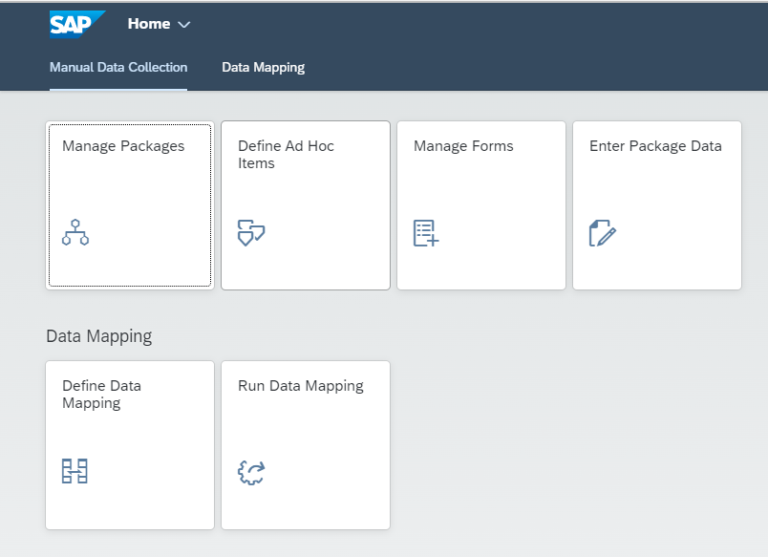
With this app, you can define mappings between source dimensions from any external system and target dimensions available in SAP S/4HANA Cloud.
• With the Define Data Mapping app, the source types you can use are .csv files, or the ACDOCA and ACDOCU tables of SAP S/4HANA Cloud. But you can also use the Group Journal Entries – Import API to retrieve data from any other source system.
• The target is the ACDOCU table of SAP S/4HANA Finance for Group Reporting. The mappings are created in Microsoft Excel files and then downloaded in data mapping definitions. These mappings are used to transform data, and get it ready to be imported into SAP S/4HANA Cloud, from the Run Data Mapping app.
Run Data Mapping
With this app, you can create mapping jobs to run your mapping and get your data imported into the ACDOCU
table of SAP S/4HANA Finance for Group Reporting.
Depending on the source you used in your Data
Mapping
definition, the mapped data will take different document types when uploaded to ACDOCU:
• 0C = Data mapped from a .csv file.
• 0D = Data mapped from the ACDOCA S/4HANA table.
• 07 = Data mapped from an external source, retrieved through the Group Journal Entries – Import API.
Partner Unit Derivation
Partner units are the building blocks of partner segmentation. They are typically defined as individual stores, franchises, or other business units that operate under a common brand or ownership structure. By leveraging GRDC data mappings, businesses can accurately identify and classify partner units.
Segment Derivation
Partner segments are groups of partner units that share similar characteristics, such as sales volume, profitability, or geographic location. By segmenting partners, businesses can tailor their marketing and sales strategies to each segment and maximize their return on investment.
Downloading Master-data mapping file Template
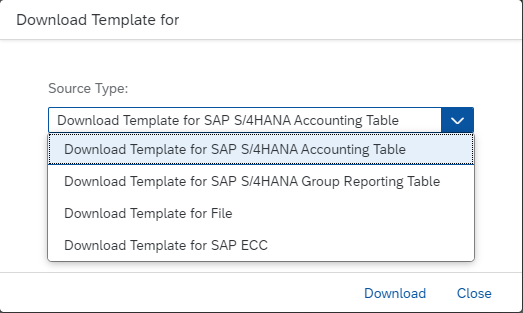
1. Go to Access Template → Download Template for.
2. Select Download Template for File.
3. Target Type → ACDOCU → Download.
Creating Master-data Mapping File
Metadata:
This excel sheet consists of all the required source and target fields.
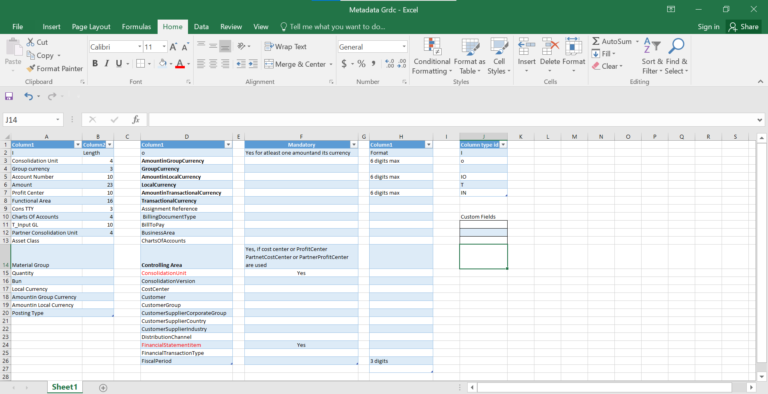
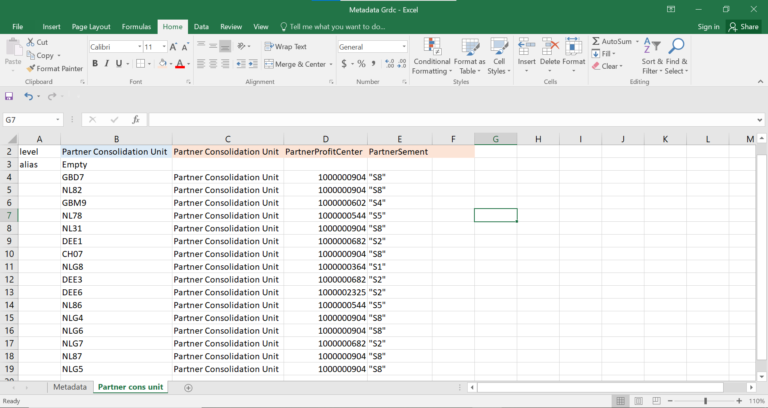
The excel sheet consists of Source and Target mappings for Partner Consolidation Unit and Partner Segment.
Create Data Mapping
1. Go to Define Data Mapping Tile and Click on Create.

Define Data Mappings (General Information)
2. Name* → ZTEST_GRDC_CSV_V1
3. Description → ZTEST_GRDC_CSV_V1

Define Data Mappings (Source Definition)
4. Source Type → CSV File.
5. Column Separator → Comma.
6. Text Identifier → Double Quotes.
7. Rows to Skip → 0.
8. Column Names at Row → 1.
9. Decimal Separator → Decimal Point (.)
10. Thousand Separator → None.
Define Data Mappings (Target Definition)
11. Give Target Type → ACDOCU.

Define Data Mappings (Mapping File)
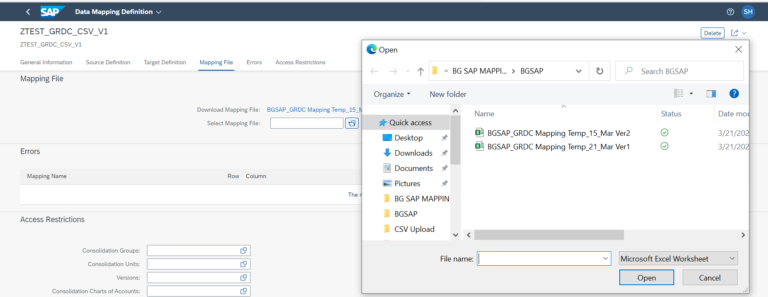
12. Browse and Select Mapping File.
13. Click on Open.
Define Data Mappings (Errors)
14. Message should be “The mapping file is correct”.

Run Data Mapping:
Click on Run Data Mapping Tile.
Create Data Mapping Job
Click on create button.

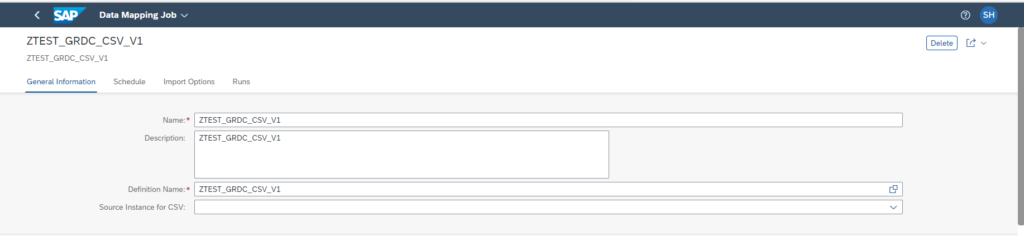
Run Data Mappings (General Information)
Name* → ZTEST_GRDC_CSV_V1.
Description → ZTEST_GRDC_CSV_V1.
Definition Name* → ZTEST_GRDC_CSV_V1.
Source Instance for CSV → Blank (Optional).
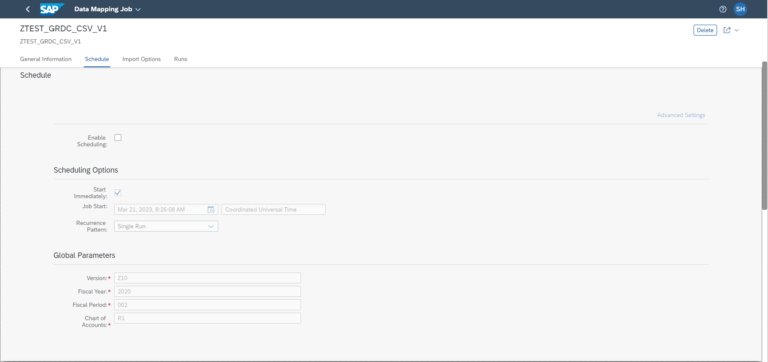
Run Data Mappings (Schedule)
Scheduling Options → Select Start Immediately.
Global Parameters → It will take by default. (If need to change then change it in Set Global Parameter.)
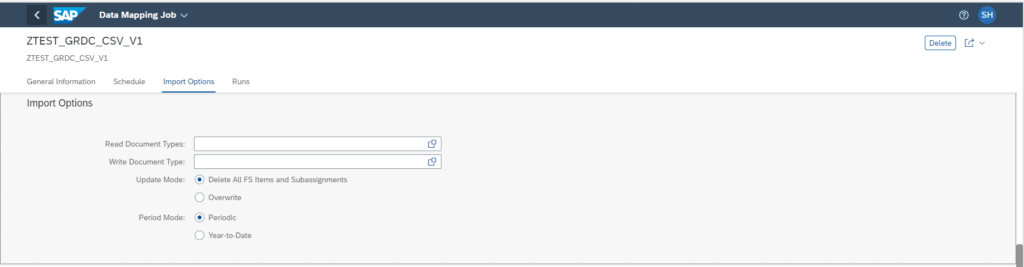
Run Data Mappings (General Information)
☑ Change Import Options as required.
Run Data Mappings (Runs)
☑ Runs will give you the information of the status after running the job.
☑ Click on Save.

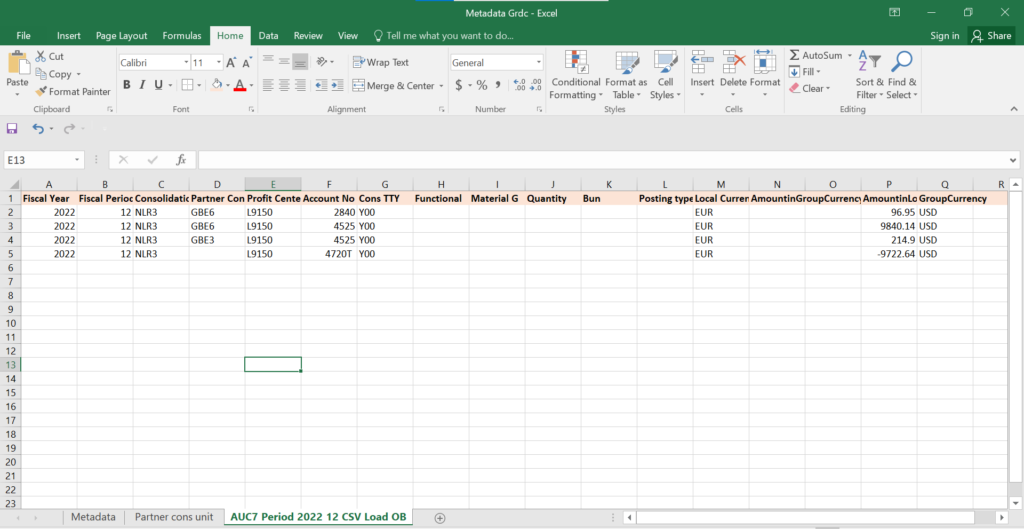
Transactional File
The following Excel File contains transactional data. Save as .csv Format.
Run Job
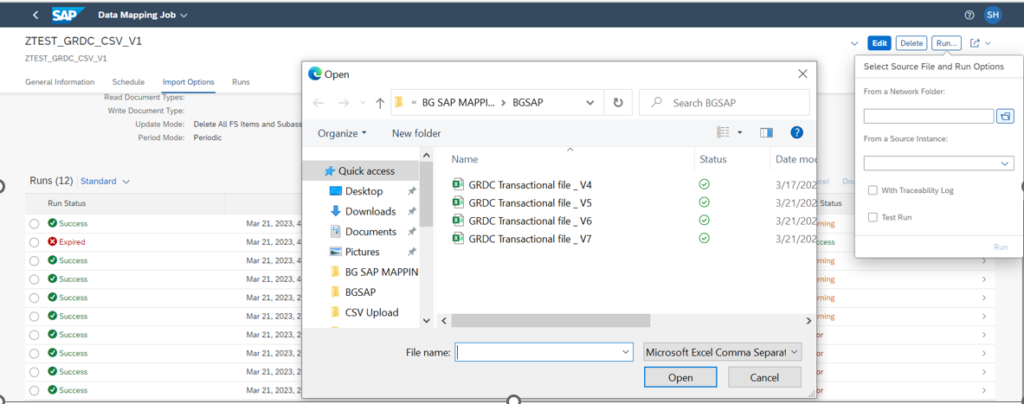
Click on Run on top right corner of the screen → Select Source File (Transactional Data File) → Click on Open.
Running Jobs
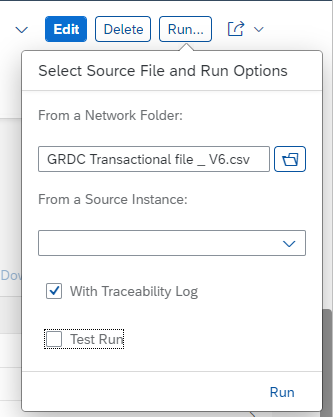
Select With Traceability Log → Click on Run.
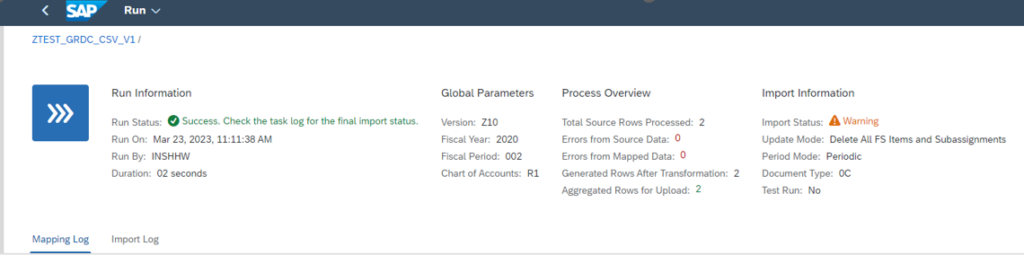
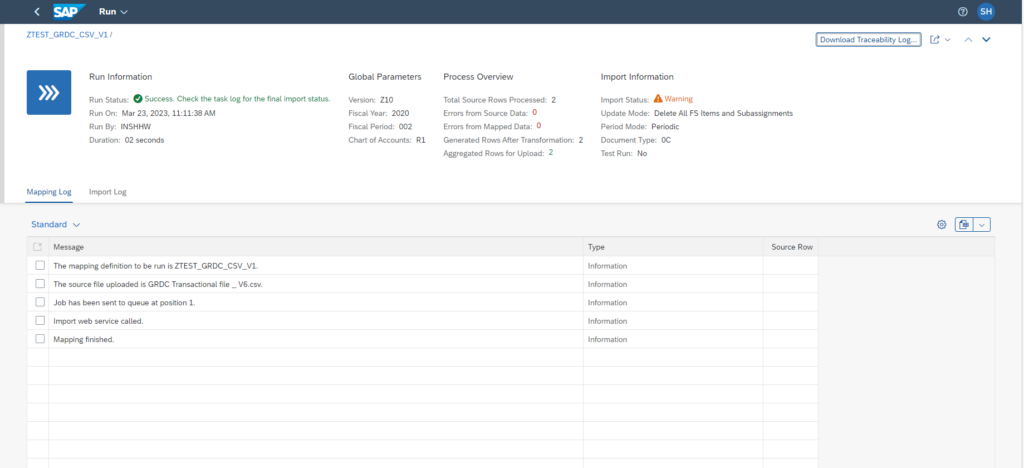
Check Status → Success. Select Status from Arrow Beside the Run Status.
Run Status
In Process Overview Check Total Source Rows Processed.
Check Errors from Source Data → 0.
Errors from Mapped Data → 0.
Generated Rows After Transformation.
Aggregated Rows for Update.
Check Import Information → Success or Warning.
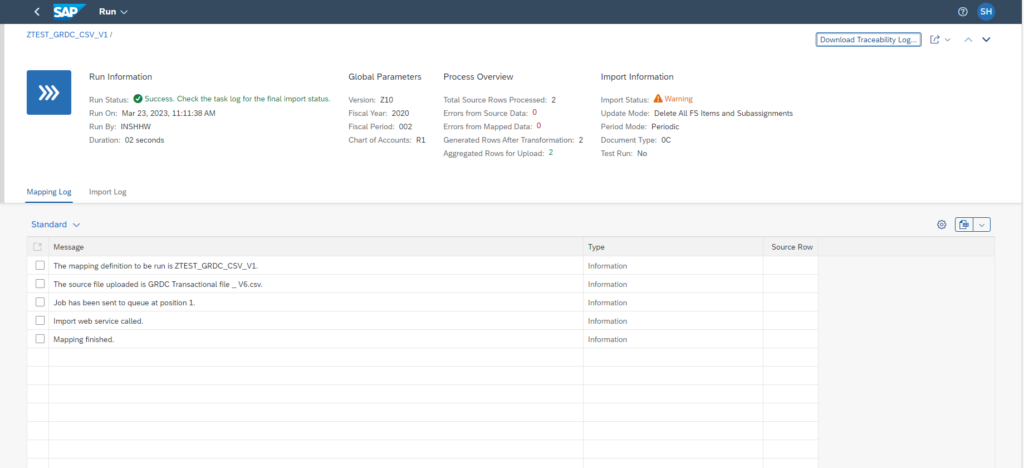
If Error → Check Mapping Log and Import Log.
Mapping Log
Import Log
Download Traceability Log
☑ For Detailed Error Information → Click on Download Traceability Log → For All Items.

To read more of our blogs you can surely click here.
Check out other video blogs.
Disclaimer: All the opinions are solely for information purposes, and the author doesn’t recommend or reject any tools. It should be done after your own due diligence.