SAP PaPM – Simplifying Signature Tab
Explore the SAP PaPM Signature Tab and learn how to configure input and output fields, manage function parameters, and control data flow within PaPM models.

Introduction
Hello everyone, in this blog post, we are going to explain the concept of a signature tab in SAP PaPM. The signature tab is a vital and intricate component within SAP PaPM, playing a crucial role in processing functions. Understanding which fields correspond to each signature option can be challenging for users. However, we will now provide a practical example based on a typical business scenario to shed light on this matter.
When it comes to creating rules, fields are essential, and the signature tab serves as a valuable resource by providing these necessary fields within the rules tab. Within the signature tab, you will find three distinct options: Granularity, Selection, and Action. Each option encompasses unique elements and serves a specific purpose.
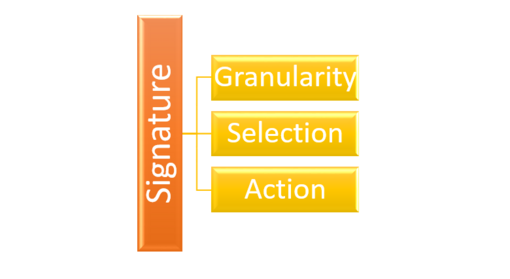
Granularity
Granularity fields in SAP PaPM determine the level of detail at which a function operates.
You cannot use these fields as selection or action fields within the same function. In other words, you cannot create rules or make modifications based on granularity fields. Instead, the granularity fields remain constant from the input to the processing phase until the function produces the output.
Selection
When a field is used in the “Selection” option of the signature tab in SAP PaPM, it allows you to apply conditions or filters in the rules tab. This means that you can define specific criteria or requirements for selecting data based on the values of that field.
Action
When a field is used in the “Action” option of the signature tab in SAP PaPM, it allows you to perform calculations on that field in the rules tab. This means that you can define formulas, calculations, or transformations based on the values of that field.
For more information kindly refer to Help.SAP.com .
Let me take it into an example and will give the solution by using SAP PaPM.
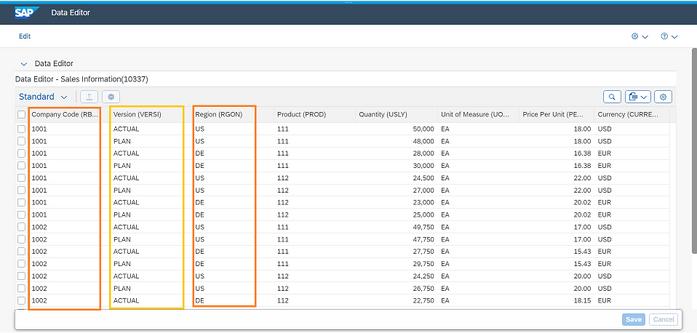
In the model table, there are two Company Codes (1001, 1002), two versions (ACTUAL, PLAN), and two regions (US, DE). The specific requirement is to calculate the revenue by multiplying the quantity with the selling price per unit, considering only the data where the company code is ‘1001’ and the region is ‘DE’. Additionally, the calculation should be performed for both the ACTUAL and PLAN versions available in the model.
Create View Function and assign the model table in the input function.
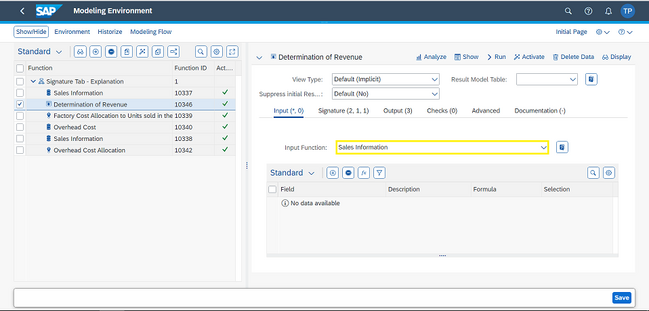
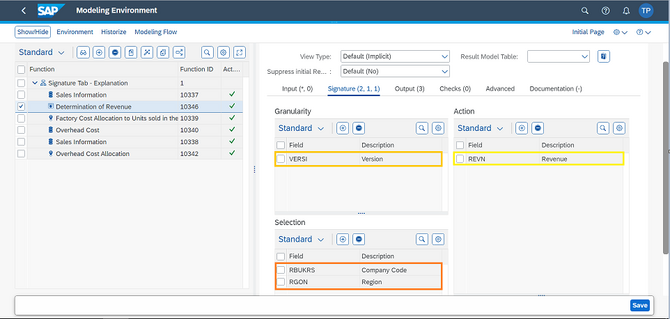
In this scenario, the “Granularity” field is represented by the “Version” field. This field does not require any filtering or modification.
For the “Selection” option, we will include the “Company code” and “Region” fields. The condition applied is Company Code = ‘1001’ and Region = ‘DE’ .
In the “Action” option, a new field called “Revenue” is created and utilized for calculations or actions.
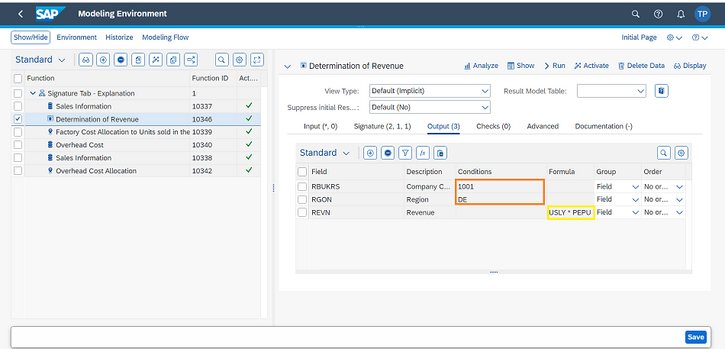
The system has applied Condition and Formula under the Output tab (in some functions, it will be the Rules tab). The fields are coming from signature tab in the same function.
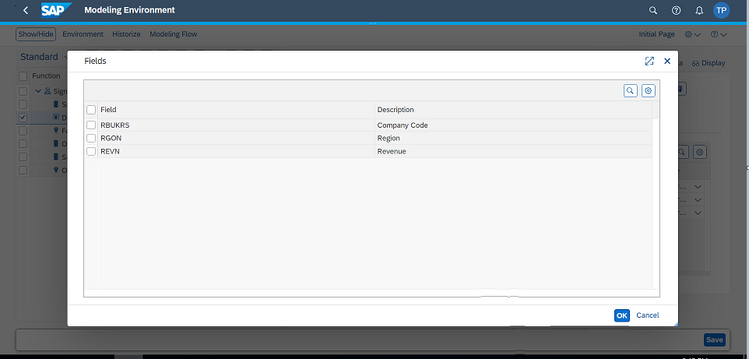
We can able to see ‘Version’ fields not visible while adding the fields in the Output/Rules tab.
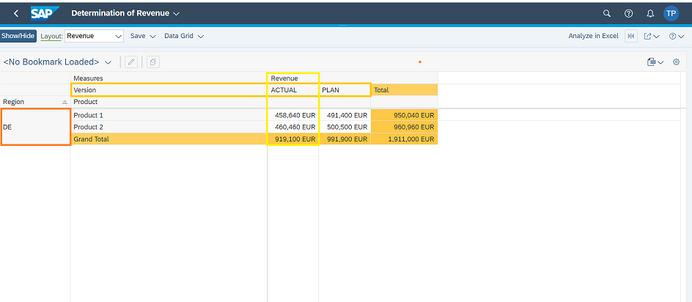
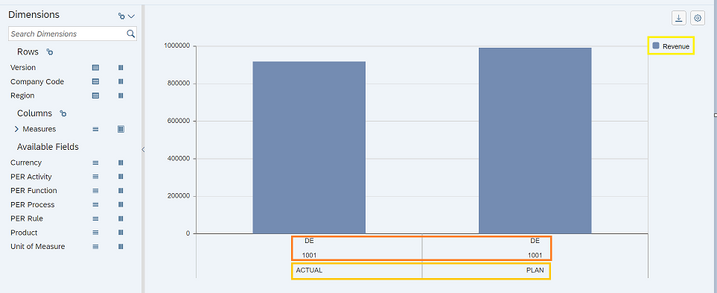
Activate and Run the function. The system calculates the revenue based on the condition that the Company Code is ‘1001’ and the Region is ‘DE’. The Granularity signature uses the Version field, ensuring that the ‘ACTUAL’ and ‘PLAN’ values remain consistent with the data from the model table.
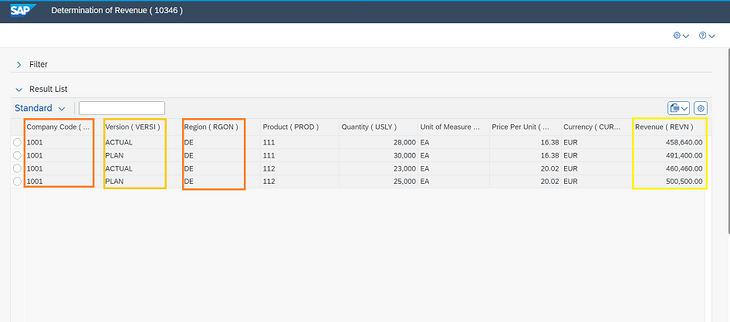
The Final Result in Data Grid
Note: Company code field not used in rows and columns.
The final result in Chart
Conclusion
The mentioned business scenario serves as a simple example to understand the purpose of each signature option in SAP PaPM. In simple words of each option, “Granularity”: Maintain stability and consistency for certain characteristics during processing. “Selection”: Choose specific fields to filter and select relevant data. “Action”: Perform calculations or actions on selected fields.
To read more of our blogs you can surely click here .
Check out other video blogs.
Disclaimer: All the opinions are solely for information purposes, and the author doesn’t recommend or reject any tools. It should be done after your own due diligence.
Related Topics
#SAP PaPM#Signature Tab#PaPM Functions#Granularity#Model Table#Rules and Formulas#Tutorial#Profitability and Performance Management