SAP Analytics cloud (SAC) – Custom Widgets (Part I)
Explore how SAP Analytics Cloud custom widgets help create tailored visualizations and interactive dashboard experiences beyond standard SAC components.
Introduction:
In today’s rapidly evolving digital landscape, businesses require access to real-time data and insights to make informed decisions. Analytical apps have become a vital tool for businesses, but they must be user-friendly and provide relevant information in a clear and concise manner to be effective. By incorporating an SAP Analytic Cloud (SAC) into your analytics applications, you can enhance the user experience.
The SAP Analytics Cloud Custom Widget functionality allows you to add unique widgets to the analytics designer’s already available widget collection, making it ideal if your analytics application requires specific user interface elements, data visualizations, or capabilities that are not offered by the standard collection of widgets. Custom widgets can be created without the need for specialized software, although a robust JavaScript text editor can streamline development efforts as widgets become more complex.
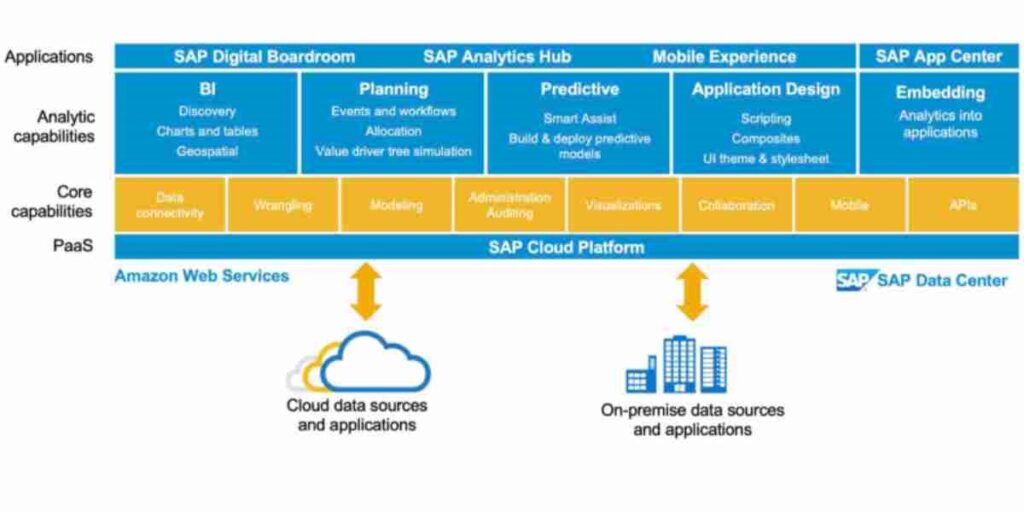
SAP Analytics Cloud is a comprehensive cloud solution that integrates enterprise planning, enhanced analytics, predictive analytics, and business intelligence into a single platform. It offers reliable data connections, a variety of visualization tools, enhanced analytical capabilities, and financial planning features. With this single cloud system, you can analyze, inquire, predict, plan, and report, making it a valuable asset for businesses in today’s fast-paced and competitive environment.
What is SAC Analytic Application Custom Widgets?
The SAP Analytics Cloud Custom Widget framework provides you with the power to create your own unique widgets that can be integrated with the predefined set of widgets available in the analytics designer. This feature proves to be extremely useful when you require a particular user interface element, a customized data visualization, or specific functionality that is not available in the existing collection of widgets.
Incorporating custom widgets into the analytics designer in SAP Analytics Cloud is a smooth and effortless process. These widgets function and appear alongside the preconfigured widgets in the widget palette. The only difference is that they are designed by third-party vendors or customers instead of being exclusively developed by SAP developers.
How SAC Improves Analytic Application with Custom Widgets?
- SAP Analytics Cloud (SAC) transforms the world of analytics by providing an effortless way for users to create and personalize widgets that cater to their specific needs. The platform’s intuitive drag-and-drop interface allows users to seamlessly create charts, tables, and other visualizations while accessing data from diverse sources, including both SAP and non-SAP systems. This not only enhances the user experience but also guarantees the accuracy and relevance of the analytics.
- One of the major advantages of utilizing custom widgets in SAC is the ability to develop dynamic and interactive dashboards that facilitate a deeper understanding and clearer communication of data. By creating widgets that feature interactive charts, users can easily filter data, drill down into specific data points, and explore information in a variety of ways, empowering them to identify trends, patterns, and outliers more efficiently. This, in turn, enables users to make more informed and actionable decisions.
- Creating custom widgets is a breeze with SAC’s built-in drag-and-drop interface, which allows users to quickly develop charts, tables, and other visualizations. SAC also provides a broad range of built-in data visualization options, such as bar charts, line charts, scatter plots, and heat maps, among others, enabling users to create visualizations tailored to their specific data and use cases.
- SAC’s collaborative environment empowers users to create and share custom widgets with ease. Sharing and reusing widgets across teams and projects streamlines the creation and maintenance of analytics applications, leading to consistency and quality in analytics.
- Moreover, SAC’s cloud-based platform enables users to access analytics applications and data from anywhere and at any time, improving the flexibility and scalability of analytics applications while reducing the cost and complexity of managing and maintaining analytics infrastructure.
- Finally, SAC provides real-time analytics, allowing businesses to access data and insights immediately and make timely, informed decisions. In today’s fast-paced business environment, where swift decisions are crucial for remaining competitive, SAC provides a game-changing solution.
How to create Custom Widgets?

Web Components are used to implement customized widgets.
The fundamental concept behind web components is to offer unique HTML elements — so-called custom elements — that don’t conflict with the rest of the HTML DOM (Document Object Model) of a web page. In actuality, custom element styling and rendering are completely separate from the rest of the HTML DOM. This is accomplished by creating a shadow DOM that divides the HTML DOM of a custom element from the HTML DOM of the web page.
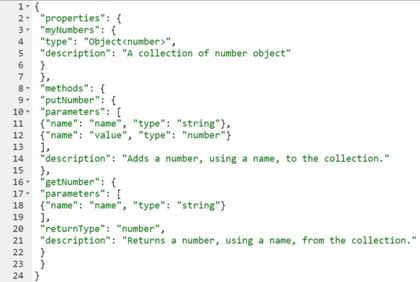
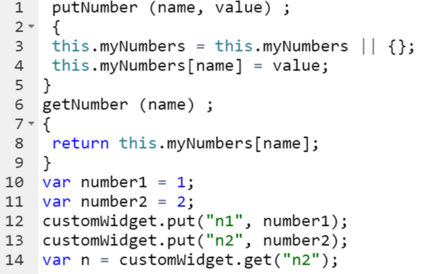
A custom widget is made up of two different sorts of files from the hosting perspective: the resource files and the custom widget JSON file.
The custom widget: the metadata for a custom widget is contained in a JSON file. It lists every component of a custom widget and uses the URLs of its resource files to refer to them.
The resource files are all the files which enable the proper working of the widget, for example, JavaScript files, CSS files, HTML files, image files, etc.

To upload a custom widget to the analytics designer in SAP Analytics Cloud, there are a few prerequisites and steps that must be followed.
- First, ensure that you have the necessary permissions to create and upload custom widgets. This means that the “Create” permission for Custom Widgets must be selected in your assigned role.
- Once you have the proper permissions, you can begin the process of uploading the custom widget. Start by navigating to the “Custom Widgets” tab on the Analytic Applications start page. From there, select the option to “Create” a new widget.
- A dialog box will appear, allowing you to choose the file you wish to upload. Select the appropriate custom widget file, such as “box.json”.
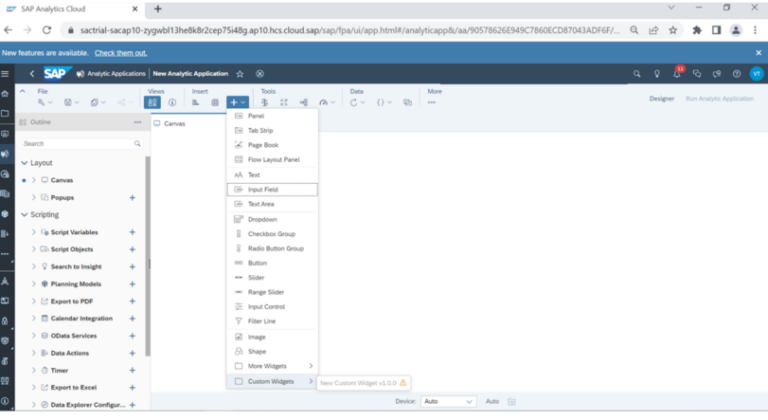
- After the widget has been successfully uploaded, it will be available for use in your analytic application. You can find it by navigating to the “Add” option and selecting “Custom Widgets” from the menu
Conclusion:
In conclusion, custom widgets are an essential feature of SAP Analytics Cloud that can help users to create more powerful and user-friendly analytics applications. They enable users to create interactive and dynamic dashboards, connect to multiple data sources, and access real-time data and insights. Custom widgets can also be used to create interactive charts that allow users to filter data, drill down into specific data points, and explore data in different ways. This leads to better understanding and communication of data, more informed decision making and improved overall user experience.
To read more of our blogs you can surely click here .
Check out other video blogs.
Disclaimer: All the opinions are solely for information purposes, and the author doesn’t recommend or reject any tools. It should be done after your own due diligence.
Related Topics
#SAP Analytics Cloud#SAC Custom Widgets#Analytics Designer#Web Components#SAC Dashboards#Data Visualization#SAC Development#How-To Guides