Leverage SAP BTP Cloud: Transition your Data Migration/ Integration Solutions from SAP PI/PO to SAP CPI
Explore how businesses can transition from SAP PI/PO to SAP CPI using SAP BTP to modernize integrations, improve connectivity, increase scalability, and support a cloud-first integration strategy.

Introduction

Benefits of transferring data from SAP PI/PO to SAP CPI :
- Better performance and scalability
- Reduced costs
- Access to new features
- Increased flexibility
- Better security
Challenges involved in migrating data from SAP PI/PO to SAP CPI:
- The complexity of the transfer process
- The need to train staff for the new platform
- Possibility of data loss or corruption.
Guide to Establish Connection between SAP PI/PO to Migration Tool :
Pre-Requisite
- You have enabled the Migration Assessment feature in the SAP BTP console as described in Feature Activation and Administration.
- You have assigned the necessary access rights for you and your users as described in the Assign access rights section.
Directory Content
- /CommunicationChannelInService
- /IntegratedConfigurationInService
- /SenderAgreementInService
- /ValueMappingInService
- /ConfigurationScenarioInService
ESR Content
- /rep/read/ext
- /dir/read/ext
Message Monitoring
- /rep/query/
The endpoints are constructed according to the pattern <protocol>://<hostname>:<port><endpoint>.
You can use the cloud interface to securely display these endpoints.
Cloud Connection Configuration
In Cloud Connector, add your SAP BTP subaccount by providing the subaccount Id, User Id, password as shown.

Make sure the cloud connector is connected. Create a new HTTP destination (cloud to local) with backend type SAP process integration by adding Host and Port address.
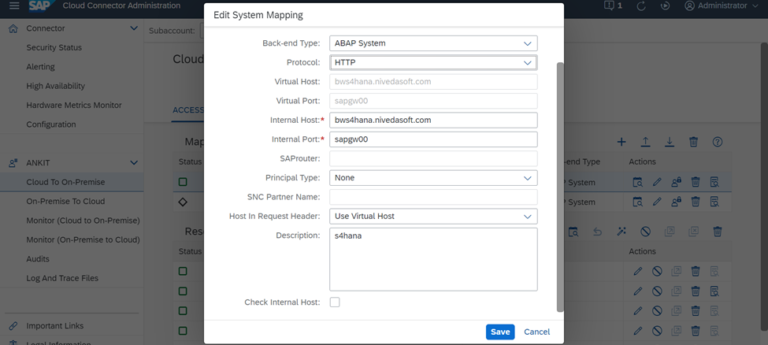
To connect the SAP process management system to the migration assessment application, do the following Procedure:
- Open the settings in the Transition Assessment application. Select SAP Process Orchestration Systems named Add from the table. Enter a system name and description. Enter the information about integrated folders:
- Enter a URL as the address.
- Enter the user ID of the technical user of the SAP process management system.
- The user must be assigned the following roles in the SAP process management system:
- SAP_XI_API_DISPLAY_J2EE
- SAP_XI_API_DEVELOPY_J2EE
- SAP_XI_MONIOR_J2EE
- Enter the user and Password. Select the box as in the integration catalog.
- Select Create.
The new system is now listed in the SAP process management systems. If you want to check if the connection is working properly, select the system and select test connection. In the current measure, transfer is only supported for ICOs with statuses of Adjust Need and Ready for Transfer.
Note: Before using the migration tool, it must be activated in the SAP BTP console and users must be given the appropriate access rights.

Based on the information provided in our templates; the migration tool can create the corresponding integration flows in SAP Integration Suite:
- Open the SAP Integration Suite Launchpad, go to the Integration Design workspace and create or open any existing integration package.
- Change the integration package. A migrate button is then visible to move the integration scenarios from SAP Process Orchestration to SAP Integration Suite.

4. Select the SAP process management system and create a connection. Listed here are the SAP process orchestration systems that were added as part of the SAP process orchestration system add-on.
5. Click “Connect” to connect. If the connection is successfully established, the “Next step” button is enabled in the footer.
6. Select the migration ICO from the SAP Process Orchestration Artifacts tab. You can see that all ICOs are downloaded from the SAP Process Orchestration integration system folder. The “Type” selected is “Integration Configuration Object”, which is the only SAP Process Orchestration object supported by this version of the migration tool.
7. Filter ICOs according to available parameters. In general, the list of ICOs is huge, so it is recommended to use a filter. In this example, ICOs are filtered using the “Sender Communication Component” parameter. Once the ICO is selected for transfer, click Next Step.
8. ICO related templates can be selected from the drop-down list. You can choose a model migration scenario. A context-sensitive help link is available to learn more about the template and the resulting integration flow template after migration.
9. In the Integration Flow tab, enter a relevant integration flow name and ID and click Preview. The description field is automatically populated with the SAP Process Orchestration system name, scenario type and name, and model information for later use.
10. On the Control tab, click the “Move” button. Please check the details before proceeding.
11. When an integration scenario is successfully migrated from SAP Process Orchestration to SAP Integration Suite, an integration flow is created in the list of artifacts on the package overview page.
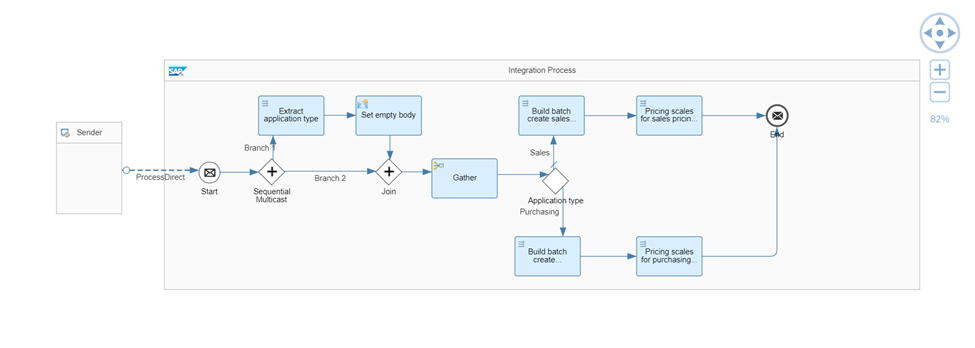
12. Open the expected integration flow that will be created after a successful migration. This example creates a point-to-point integration flow using a SOAP adapter, two message descriptors, and one XSLT descriptor.
13. Certain configuration changes are required to enable the integration flow. For example, set the proxy to “On-Premise” in the receiver SOAP adapter and provide the associated “Location ID”.
14. Select the XSLT mapping step and open the corresponding resource for validation. You can also see resources for message mapping steps.
15. Enable the integration flow and start the endpoints to process the messages normally. Verify that the security artifacts used in your ICO, such as the credential name and key alias, are correctly defined in the integration flow. Deploy the required security artifacts before deploying the integration process.
Conclusion
Disclaimer: All the opinions are solely for information purposes, and the author doesn’t recommend or reject any tools. It should be done after your own due diligence.